Reading a VPAT: accessibility when your city buys software
What a VPAT and an Accessibility Conformance Report are, how to read one critically, and what to ask vendors, including for the staff-facing admin tools that are often overlooked.
Cities are expected to make their digital services accessible, and that includes software they buy. The standard document vendors offer is a VPAT, or more precisely an Accessibility Conformance Report built on the VPAT template. Many procurement files contain one. Fewer have one that someone actually read.
This post explains what the document is, how to read it critically, and what to ask.
VPAT vs ACR
- VPAT (Voluntary Product Accessibility Template) is a template, published by the Information Technology Industry Council.
- ACR (Accessibility Conformance Report) is a completed VPAT for a specific product and version.
People use the terms interchangeably. What you want is a completed report for the product and version you are buying.
Which edition?
The template comes in editions covering different standards:
- WCAG: the Web Content Accessibility Guidelines, the reference for most web software.
- Section 508: the US federal standard, which incorporates WCAG.
- EN 301 549: the European standard.
- International: all of the above in one report.
For a US city buying web software, a WCAG or Section 508 edition is usually what you need. Check which WCAG version and level it reports against, typically 2.1 AA. Your accessibility requirements, and current federal rules for state and local government, may name a specific version; check with your ADA coordinator or counsel.
How to read the table
Each criterion gets a conformance level and remarks:
| Level | Means |
|---|---|
| Supports | Meets the criterion without known defects |
| Partially Supports | Some functionality doesn't meet it |
| Does Not Support | Most functionality doesn't meet it |
| Not Applicable | The criterion doesn't apply to the product |
The remarks matter more than the levels. "Supports" with no remarks tells you little. "Partially Supports: the chart view has no table alternative; planned for version 4.2" tells you exactly what to test and what to negotiate.
Red flags
- No date or version. A report from three versions ago may not describe what you're buying.
- Every row says Supports. Complex software rarely has no gaps. It may be accurate, but ask how it was tested.
- No remarks. Levels with no explanation can't be checked.
- Not Applicable everywhere. Some vendors mark hard criteria as not applicable. Ask why.
- No word on testing method. Was it automated scanning only, manual review, or testing with assistive technology?
Self-assessment or third party?
Many reports are self-assessments by the vendor. That is normal and not a problem in itself, as long as it says so. A third-party review adds confidence, but it is a snapshot in time too. Either way, ask how it was tested and when.
Don't forget the staff side
Accessibility reviews often focus on what residents see: public websites, payment portals, forms. But the tools staff use matter too. A city employee who uses a screen reader or works by keyboard still needs to do their job in the permit system, the finance system and the integration tools.
Ask specifically about:
- Admin and configuration screens, not just the public interface.
- Drag-and-drop editors, which are often the hardest part. Is there a keyboard alternative?
- Charts and dashboards. Is there a table view?
- Sign-in pages, including third-party ones.
Test it yourself
A short hands-on check during evaluation is worth a lot:
- Do the main tasks using only the keyboard.
- Zoom the browser to 200% and check that nothing is cut off.
- Run a free automated checker on the main screens.
- If you can, ask a staff member who uses assistive technology to try it.
Put it in the contract
- Require a current report for the version delivered, updated with major releases.
- Ask the vendor to fix accessibility defects in a reasonable time, like other defects.
- Name a contact for accessibility issues.
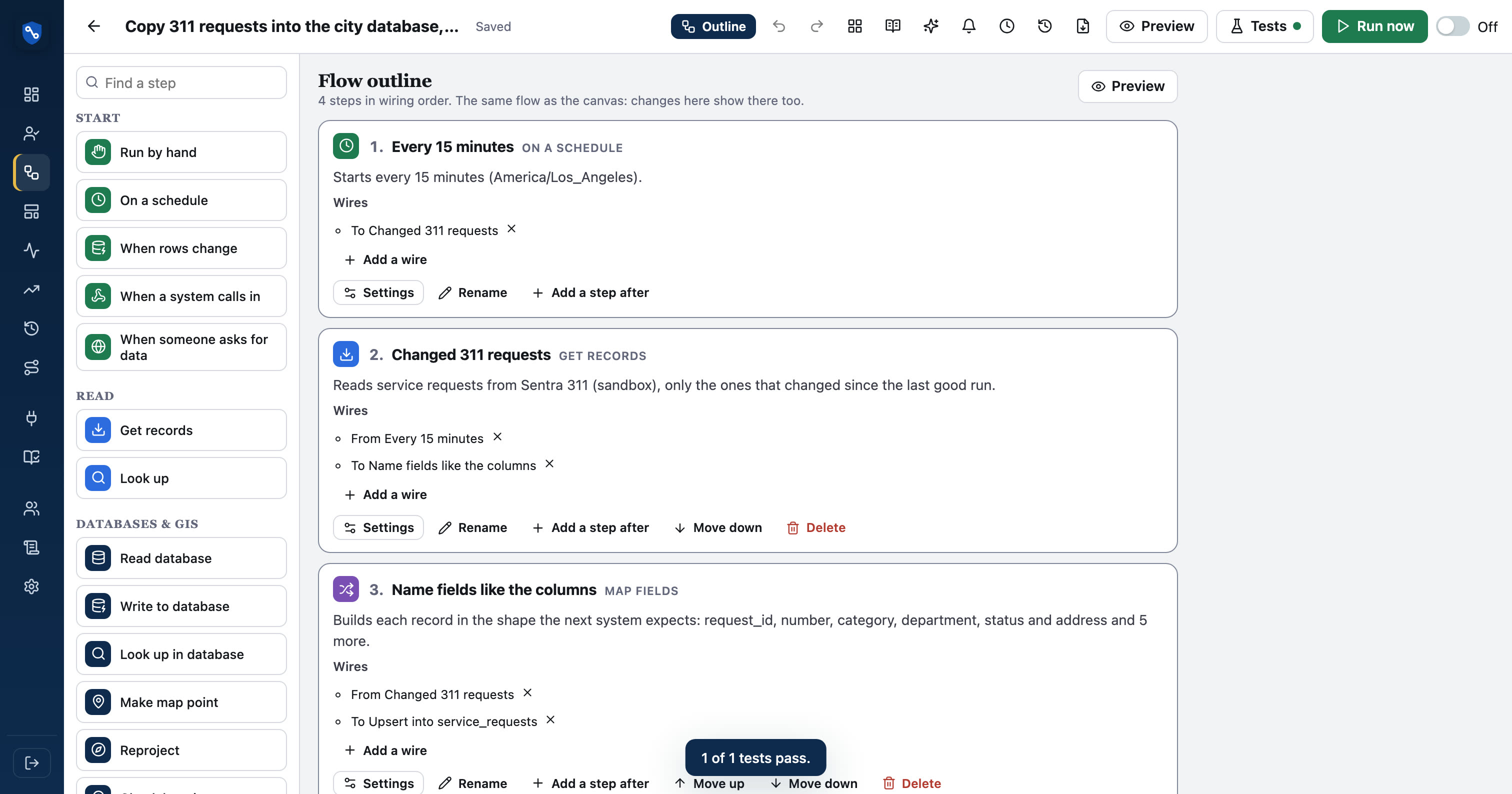
SentraBridge's report
SentraBridge publishes its Accessibility Conformance Report for the signed-in app, built on VPAT 2.5 against WCAG 2.1 AA. It is a self-assessment from automated checks and scripted keyboard tests, and it says plainly that a human screen reader test has not yet been done. The flow designer has a keyboard Outline view that does everything the canvas does.